Our site uses cookies to give you the best experience. or continue shopping if you're happy.
Accept & close
How to connect Sony headphones with any device
Learn how to connect your Sony headphones to your Android devices, iPhone, and Windows PC and troubleshoot any issues for easy listening.

As soon as you get your Sony headphones out of the box, you’ll be itching to get listening. We get it. That’s why we’ve made a guide that’ll show you how to connect to the most popular phones and computers, as well as how to deal with any issues if there’s a bump in the road. Follow these steps and you’ll be tapping your toes to the beat in no time.
iPhone

The first thing to do is make sure your headphones are fully charged and pop them into pairing mode by pressing and holding the power button. You should see a flashing light to show you they’re ready to go.

On your iPhone, go to Settings > Bluetooth.

Turn on Bluetooth and choose your Sony headphones from the list – they’ll probably be near the bottom under “other devices”. Click on it, listen out for a confirmation tone, and they’re good to go. The best news is you only need to do this once and they’ll automatically pair in future.

You might be prompted to download the Sony app while you connect for the first time, but that’s not essential to use the headphones.
Android devices
Step 1
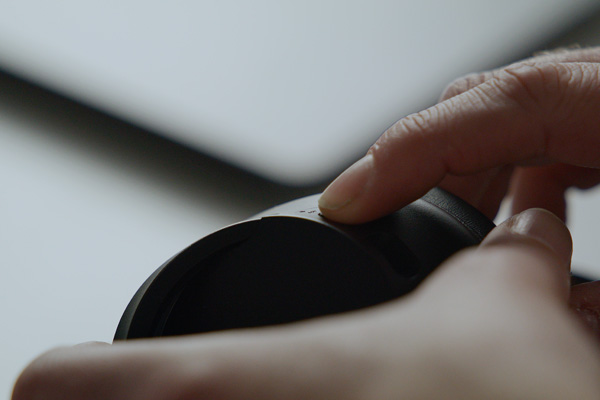
The first thing to do is make sure your headphones are fully charged and pop them into pairing mode by pressing and holding the power button. You should see a flashing light to show you they’re ready to go.
Step 2
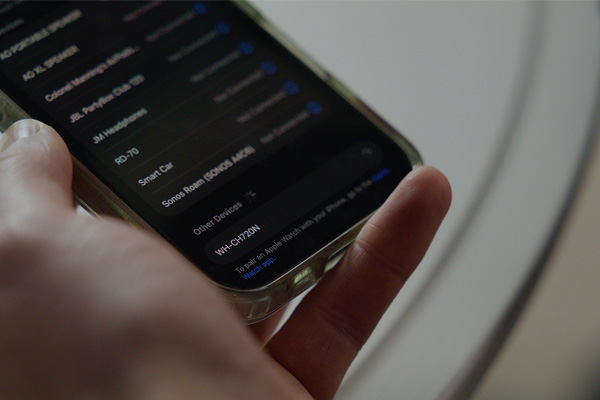
On your Android device, go to Settings > Bluetooth.
Step 3
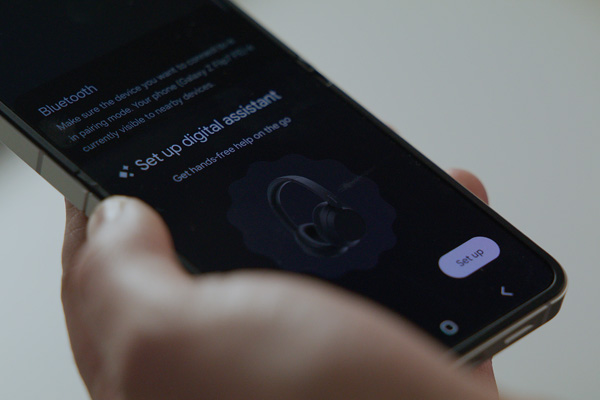
Turn on Bluetooth and choose your Sony headphones from the list. Press connect, listen out for a confirmation tone, and they’re good to go. The best news is you only need to do this once and they’ll automatically pair in future.
Windows PC
The first thing to do is make sure your headphones are fully charged and pop them into pairing mode by pressing and holding the power button. You should see a flashing light to show you they’re ready to go.
On your Windows PC, go to Start > Settings > Devices > Bluetooth & other devices.
Go to Add Bluetooth or other device > Bluetooth.
Click on your Sony headphones, listen out for a confirmation tone, and they’re good to go. The best news is you only need to do this once and they’ll automatically pair in future.
Troubleshooting tips
If your headphones don’t appear in the device list, there are a few things you can do to get things working.
- Make sure they’re definitely in pairing mode. Check for the blinking light and, if it’s not showing up, hold the power button until it does.
- On your device, toggle your Bluetooth off and on again.
- Make sure your headphones and device are close together.
For audio distortion or the connection dropping out, try these steps:
- Make sure your headphones and device are close together, sometimes going into the next room will weaken the connection.
- Check how many other Bluetooth devices are nearby and, if there are lots, turn a few off.
- Double-check the software’s all up to date on both devices and follow the on-screen instructions to download if they’re not.
If you’ve tried all of the above and you’re still having trouble, here are a few more options that might help get things going again:
- On your device, go to the Bluetooth settings and click to forget the headphones.
- Restart the headphones and the device.
- Pair them again to create a new connection and it should be plain sailing from there.
