Our site uses cookies to give you the best experience. or continue shopping if you're happy.
Accept & close
How to add AirPods to find my iPhone
It’s reassuringly easy to add AirPods to find My iPhone, so here's a step by step of how it's done.
If you’re sceptical about owning AirPods because you’re scared of losing them, we get it. They’re small, they’re in and out all day - let’s face it - they are easy to lose track of. The good news is, the smarty pants at Apple already thought about that. It’s reassuringly easy to add AirPods to Find My iPhone, so now there’s nothing stopping you. Check out our range and be sure to take a look at the Pro AirPods for noise-cancellation tech that blurs the background buzz.
Once you’ve got your shiny new AirPods, the last thing you want to do is lose them. Link them to the Find My app, so you can always keep track of them. This can make them play a sound or show their location on a map if you’ve left them somewhere. That’ll save you ransacking the house to discover you’ve left them at the office the next day. Newer models even let you mute one and play a sound on the other, so when the right AirPod’s stuck behind a sofa cushion, you won’t be confused by the left one beeping too.
Here's how it's done
Setup
Getting set up is really straightforward, all you need to do is pair your AirPods to your iPhone and link them to the Find My app to keep track of them wherever they are.
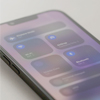
Step 1
Make sure Bluetooth on your phone is turned on and make sure both AirPods are in the charging case and open the lid.
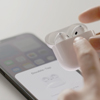
Step 2
Hold it close to your iPhone screen and tap “connect” when the setup message appears then with the case open, double tap the front.
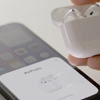
Step 3
If prompted, press and hold the button on the back of the AirPod case until the status light flashes white – that means they’re in pairing mode.
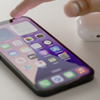
Step 4
Follow the on-screen instructions – they might ask you to change some settings, like enabling “Hey Siri!”
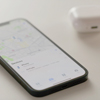
Step 5
Once connected, your AirPods will be automatically added to your Apple ID and they’ll connect every time you want to use them from now on.
Once everything’s paired up your AirPods should automatically be added to the Find My app, if you don’t have this enabled, it’s really easy to get them added.
- Tap the “More Info” button next to your AirPods on the list.
- Scroll down to the “Find My” network and make sure it’s turned on.
- Click “Find My” then choose “Find My AirPods” - they should be showing up now they’re paired.
